
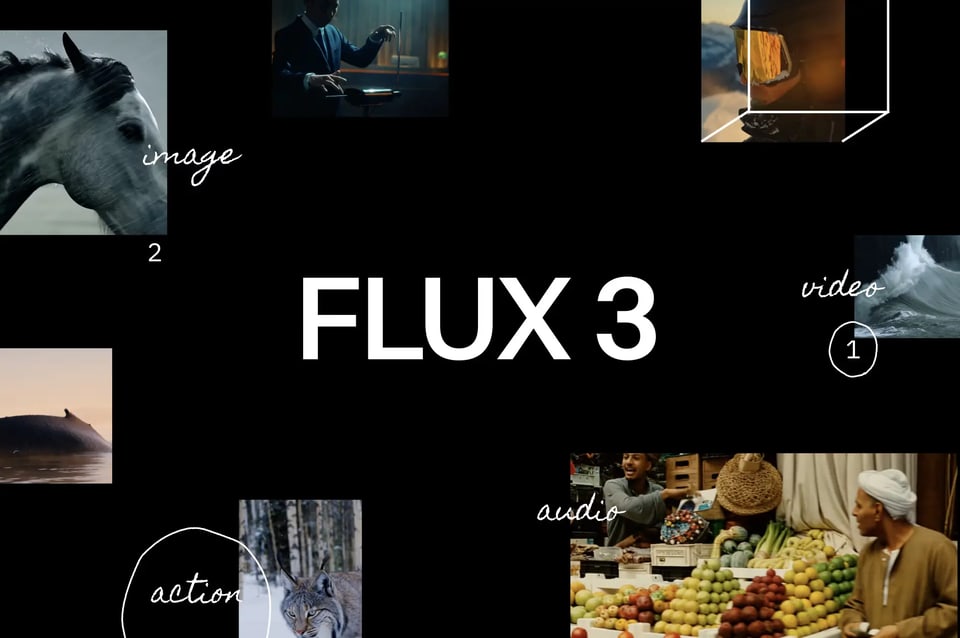
Flux 3
Image Generator · 3 credits / Fast image
Flux 3 image generation with Fast and Pro modes plus optional image references.
Use Flux 3 AI as an AI image and video generator and editor. Start from a prompt or reference, compare models, refine the strongest result, and continue from image to video without rebuilding your Flux 3 project.
Inside Flux 3 AI
Flux 3 AI is an independent AI creative workspace for generating and editing images and videos. The Flux 3 AI generator connects prompts, references, model comparison, image to video AI, enhancement, and upscaling so you can improve a strong result instead of starting again.
Flux 3 AI workflows
Use the Flux 3 AI image generator to create product visuals, portraits, concepts, and campaign assets from a text prompt or reference image. The Flux 3 AI generator lets you compare models and variations inside the same AI creative workspace before choosing a direction.
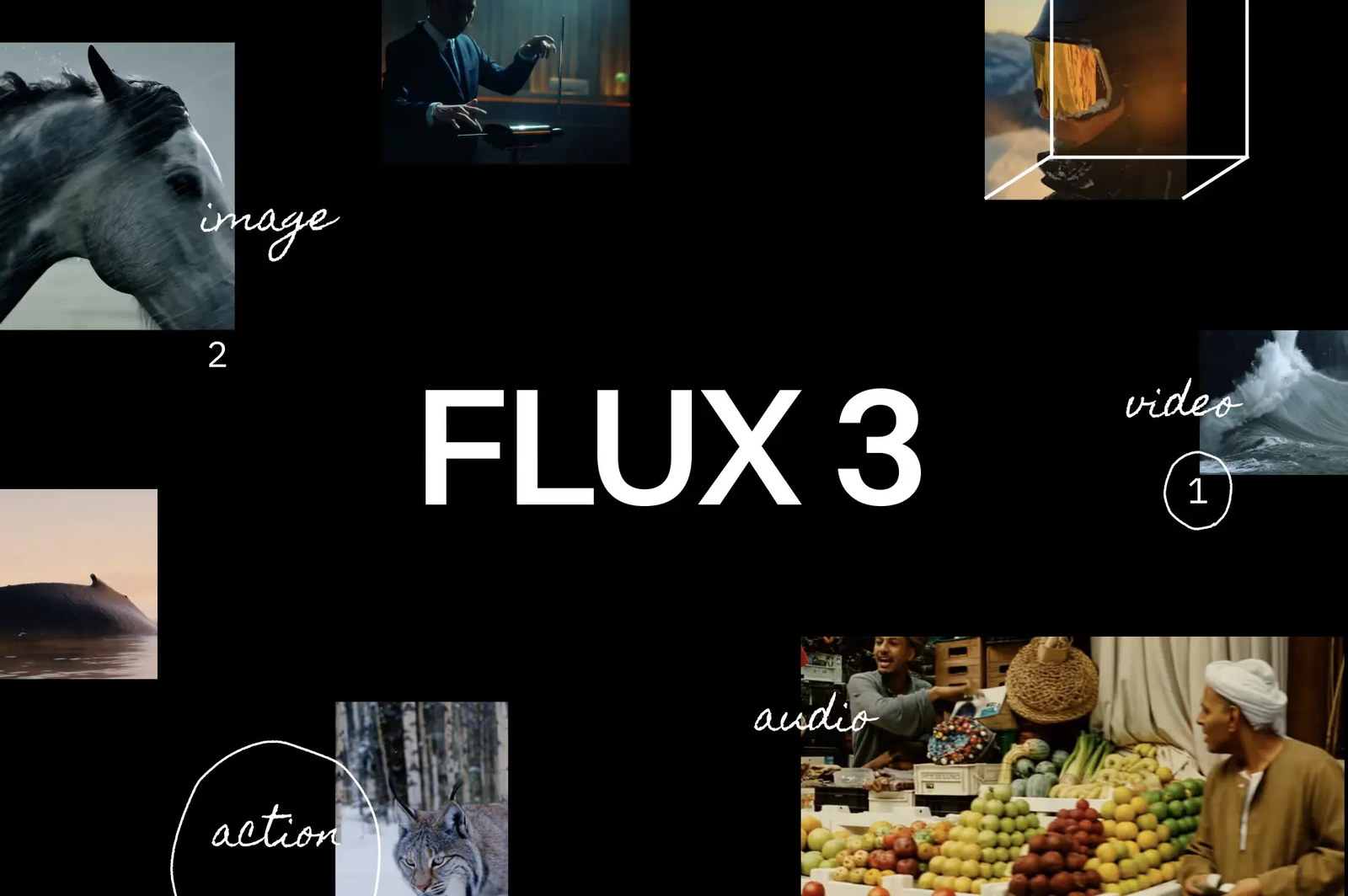
Why creators choose Flux 3 AI
A useful AI image and video generator should support the whole visual workflow. Flux 3 AI connects an AI image generator, AI image editor, AI video generator, and AI video editor so a strong result can move from first prompt to finished asset without leaving the AI creative workspace.
Start the Flux 3 AI image generator with a clear prompt or one or more references. Compare suitable image models, aspect ratios, and outputs in the same multi-model AI generator before committing time to detailed edits.
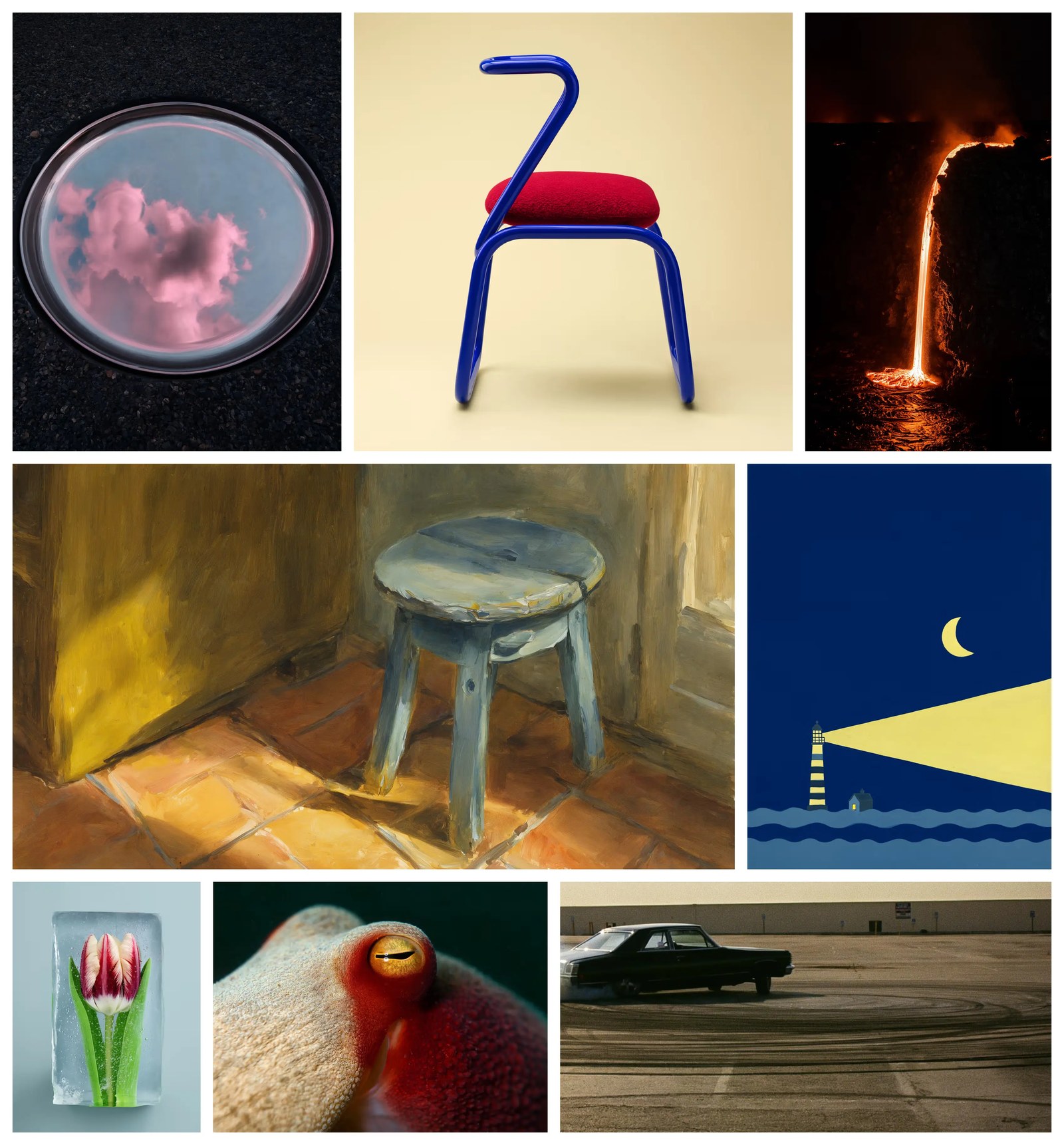
The Flux 3 AI image editor lets you keep the strongest parts of an asset. Within the Flux 3 AI image and video editor, natural-language instructions can change a selected area, relight the subject, replace the background, remove a distraction, or create a cleaner variation.
Use the Flux 3 AI video generator for text to video or image to video AI. Describe the scene and movement, choose a suitable model, then control the available aspect ratio, duration, quality, motion, and audio settings.
Bring a useful clip into the Flux 3 AI video editor instead of generating again. The Flux 3 AI creative workspace lets you describe the change, add a reference when supported, and continue through scene editing, reframing, motion refinement, enhancement, or export.
Start with the Flux 3 AI generator
The Flux 3 AI generator organizes one idea inside an AI creative workspace. Describe or upload the starting point, compare generated results, then continue with the Flux 3 AI editing or video tool that moves the work toward delivery.
Tell Flux 3 AI what you need in plain language. Add an image or video reference when identity, composition, style, motion, or an existing product must remain recognizable.
Use the multi-model AI generator to choose a suitable image or video model, set the important controls, and compare outputs before spending time and credits on detailed edits.
Open the strongest Flux 3 AI result in the AI image and video editor to refine details, change the format, create motion with image to video AI, or prepare delivery-ready versions.
Flux 3 AI is more than an AI image and video generator. Continue with focused tools for prompt-based image editing, image to video AI, enhancement, and high-resolution upscaling without exporting and rebuilding the work between steps.

Use the Flux 3 AI image editor to change selected areas, objects, composition, lighting, backgrounds, and style with a direct natural-language prompt.
Learn more
Turn an existing still into a video with the Flux 3 image to video AI workflow, a motion prompt, and model-specific duration, framing, quality, and audio controls.
Learn more
Increase the resolution of a Flux 3 AI result, recover useful detail, and prepare cleaner image versions for websites, social media, campaigns, or print.
Learn moreClear answers about the Flux 3 AI generator, AI image and video workflows, model selection, editing, image to video AI, and the relationship between Flux-3.ai and third-party model providers.
The Flux 3 AI generator is an independent AI image and video generator built around a connected creative workflow. Flux 3 AI lets you start with text or references, compare models, generate images or videos, and continue a useful result through editing, enhancement, upscaling, or image to video AI.
Yes. Flux 3 AI works as an AI image and video generator and an AI image and video editor. You can create images from prompts or references, generate videos from text or still images, and move the result into dedicated editing tools. Available controls and output options depend on the selected model.
Choose or upload the image you want to animate, describe the camera or subject movement, and select a model in the Flux 3 image to video AI workflow. Review the available duration, framing, quality, and audio settings, then generate and compare the result before continuing with video editing or upscaling.
Yes. The Flux 3 AI image editor can use a natural-language instruction to change a selected area while preserving the useful parts of the image. Flux 3 AI also provides focused tools for relighting, background replacement or removal, enhancement, resizing, and upscaling when the task needs a more specific workflow.
Flux 3 AI is a multi-model AI generator. The workspace provides Flux 3 Image and Flux 3 Video routes alongside other supported image and video models. Open the model selector to see current availability, generation cost, input requirements, and the controls supported by each workflow before you create.
No. Flux-3.ai and the Flux 3 AI generator are an independent creative platform and are not affiliated with or endorsed by Black Forest Labs. Third-party model and company names identify compatible creative workflows only. Model availability can change, so the model selector is the source of truth for what the platform currently supports.
Yes. Upload existing footage to the Flux 3 AI video editor and describe the change you want. The Flux 3 AI image and video editor can support prompt-based scene changes, reference-guided edits, reframing, motion control, enhancement, or upscaling, depending on the selected workflow and model. Review the model requirements before generating because supported inputs and controls vary.
No. Start the Flux 3 AI generator with a direct description of the subject, setting, composition, style, and intended change. You can compare outputs and refine the instruction after seeing the first result. References often communicate visual intent faster than a long prompt, so Flux 3 AI supports prompt-led and reference-led workflows.
Flux 3 AI uses credits because every AI image and video generator model has a different generation cost. Current plans, included credits, and purchase options are listed on the pricing page, while the Flux 3 AI model selector shows the cost of the selected workflow before generation. Video tasks usually require more compute than image tasks.
Commercial use depends on the selected model, provider terms, your plan, and the rights attached to prompts, uploads, references, brands, and people in the output. Before publishing output from the Flux 3 AI generator or another model in this multi-model AI generator, review the current platform and model terms and confirm that you have the necessary rights.
Open the Flux 3 AI generator, create your first image or video, and continue the strongest result through the same AI creative workspace for editing, image to video AI, enhancement, upscaling, and reuse.
Open Flux 3 AI